How to Post High-Quality Photos on Social Media Without Quality Loss
Have you ever edited a photo on your phone until it looked absolutely perfect, incredibly sharp, and full of fine details, only to find that it looks blurry, soft, or pixelated once you post it on Facebook or Instagram?
The culprit is social media compression. Platforms apply aggressive algorithms to reduce file sizes to save storage space and bandwidth on their servers. If you upload an image that is too large, their system will automatically compress and resize it, causing a dramatic loss in quality.
In this guide, we will share the secret of how to post high-quality photos on social media by optimising your output image size to exactly 2048px – the golden standard recommended by major social platforms – using Modipix.
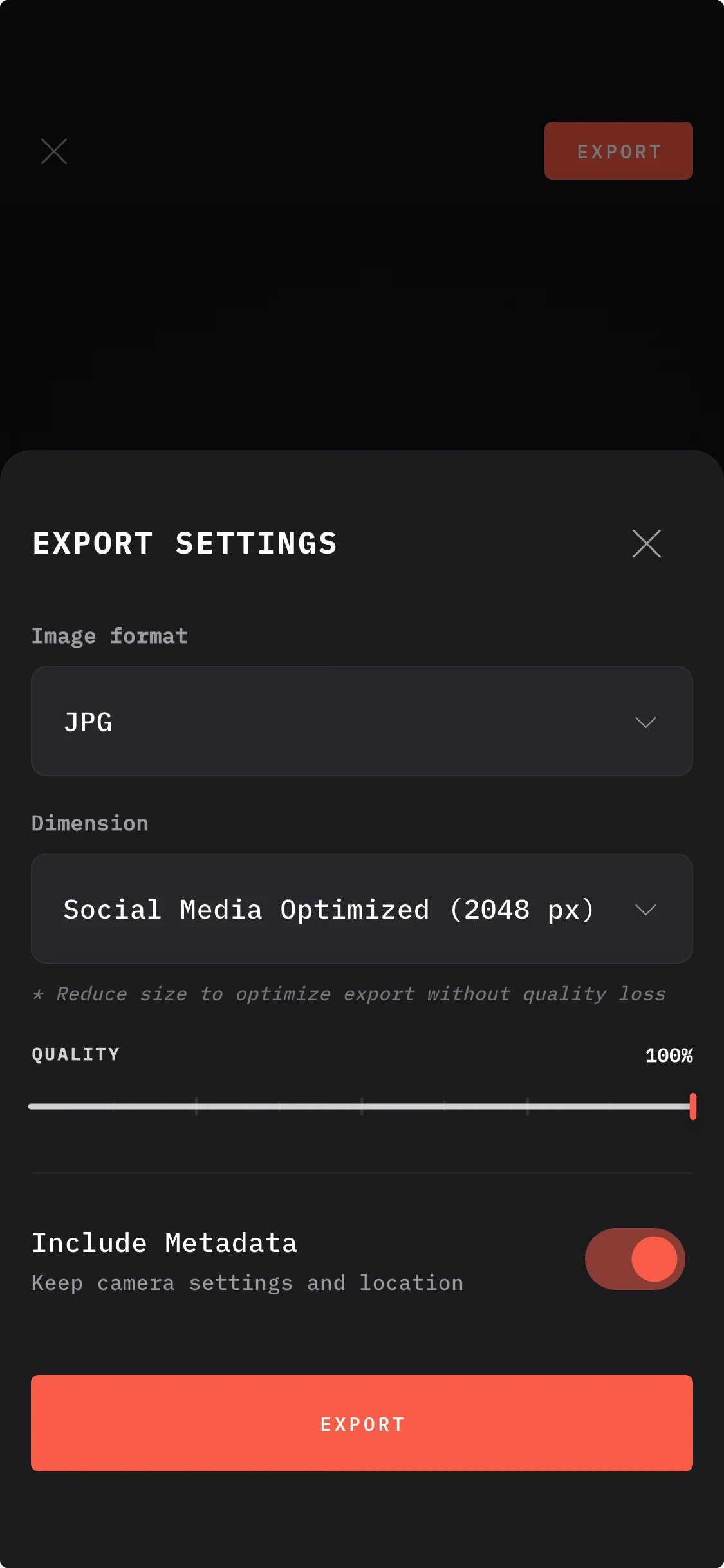 High-quality export interface settings on the Modipix app
1. Why is 2048px the Magic Number for Social Media?
Many people believe that uploading the highest resolution possible (such as 4K, 8K, or raw photos from a 48MP/108MP camera) will result in the sharpest online posts. In reality, the opposite is true.
When you upload an oversized photo, Facebook and Instagram's automated systems compress the file. This compression is often crude, resulting in artefacts and loss of detail.
However, these platforms support a maximum standard size where detail is preserved best:
- Maximum Width (Long Edge): Exactly 2048 pixels.
- If you proactively resize your photo to 2048px before uploading, the platform's compression engine will bypass heavy processing. As a result, your image remains remarkably sharp on the feed.
2. How to Export 2048px Images Using Modipix
To make this optimisation effortless, Modipix – the professional offline photo editor – includes a simple, custom export tool. Follow these quick steps to save optimised social media images:
Step 1: Finish editing your photo and tap Export
After applying your favourite 3D LUT filters and vintage film effects in Modipix, tap the Export icon in the top right-hand corner of the screen.
Step 2: Access the export menu (Bottom Sheet)
An export options menu will slide up from the bottom of the screen (commonly called a bottom sheet). This interface lets you adjust your output parameters without modifying the original photo.
Step 3: Choose the optimal image size (Dimension)
In the Dimension settings, you will see pre-configured quick buttons. Tap the button labelled 2048px (optimised for social media).
If you need a specific size, you can also slide the custom range bar to specify the exact dimensions you want. Modipix uses high-fidelity resampling to resize the image while maintaining crisp details and colours.
Step 4: Save and upload to social media
Once you select 2048px, tap Save. Your photo is now perfectly optimised and ready to be posted to Facebook or Instagram without any risk of compression damage.
3. Conclusion
Learning how to post photos without quality loss is a game-changer for content creators, photographers, and casual users alike. By utilising the convenient export settings and the optimised 2048px preset in Modipix, you can ensure that your images look exactly as sharp and stunning on social media feeds as they do in your gallery.
Download Modipix on the App Store or Google Play today to start saving and sharing your photos in pristine quality!