How to Copy and Extract Color Grades from Any Reference Photo
Have you ever come across a stunning image on Instagram, a cinematic frame from your favorite movie, or a professional photo in a magazine, and wished you could apply that exact same color grading to your own photos?
Normally, copying a color palette is a tedious task. It requires you to spend hours adjusting individual color sliders, tweaking HSL (Hue, Saturation, Lightness) settings, balancing color curves, and calibrating exposures. This requires advanced photo-editing skills and a lot of trial and error.
Fortunately, mobile photo editing has become much smarter. In this guide, we will walk you through how to apply color from photo targets to your own images in seconds using the Smart Filter (Clone the Vibe) feature in Modipix.
1. What is the Smart Filter Feature in Modipix?
The Smart Filter tool in Modipix is a cutting-edge, AI-powered color grading utility that runs 100% offline on your device.
It works by analyzing the distribution of color palettes, contrast ratios, and brightness values of a reference photo (the "target image" with the style you love). It then applies those color profiles directly to your active photo. This is the ultimate color matching tool for maintaining a consistent aesthetic across your entire photo gallery without the hassle of editing each photo from scratch.
2. Step-by-Step Guide to Extracting and Copying Colors with Modipix
To match colors from a reference image to your photos, download Modipix on your smartphone and follow these easy steps:
Step 1: Open the Smart Filter tool
Import the photo you wish to edit into Modipix. In the editing toolbar at the bottom of the screen, scroll and select the tool labeled SMART FILTER (highlighted with a red circle in the interface).
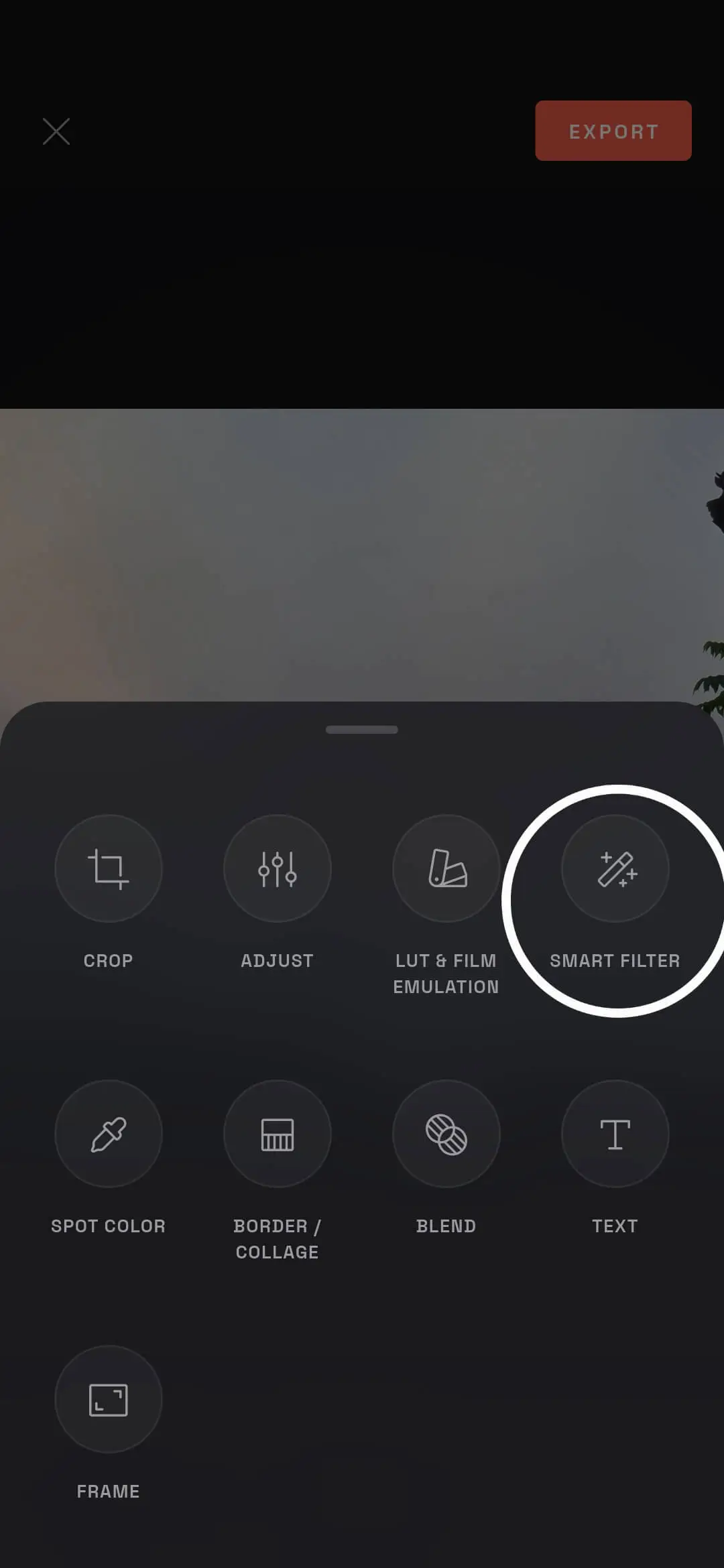 Select the Smart Filter tool in Modipix's editor menu
Step 2: Select your target reference image
Once inside the Smart Filter panel, tap the TARGET IMAGE button. The app will open your phone's photo library. Choose the reference image that has the beautiful color grade you wish to copy.
 Tap Target Image to import the reference photo containing the color palette
Step 3: Apply and fine-tune the color grade
As soon as you select the target photo, Modipix's offline AI will automatically extract and apply the color styling to your current photo. You will see an instant, dramatic shift in color tones.
 The color grade from the target photo is applied to your active photo
To make the effect blend naturally with the lighting conditions of your original photo, use the advanced adjustment sliders below:
- LUMA MATCH: This option balances the brightness levels. Adjusting this slider ensures the exposure of your photo aligns naturally with the luminosity of the target image.
- Shadow, Midtone, and Highlight: Tweak these sliders to control the intensity of the color matching in specific brightness zones.
- Adjust the details and grain parameters to add texture and complete your artistic look.
3. Conclusion
Learning how to extract color from image palettes allows you to recreate professional grades on the go. With Modipix's offline Smart Filter and simple adjustment tools, matching color aesthetics takes only a few taps, saving you hours of manual editing.
Download Modipix on the App Store or Google Play today to start copying color grades like a pro!